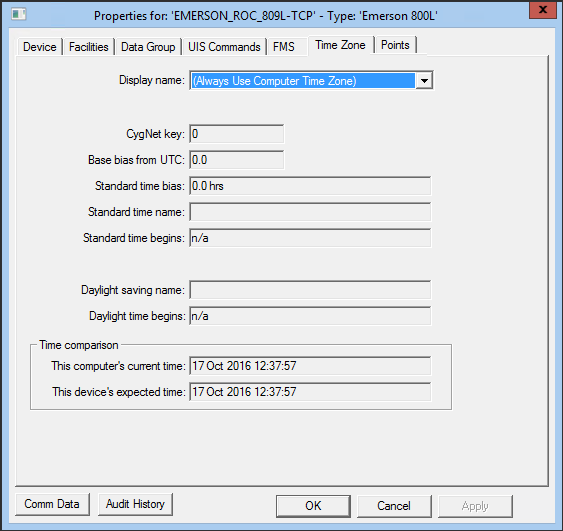
Many remote devices have a Time Zone page within their remote device editor. Use the Time Zone dialog box to make advanced time settings changes.
By default, a Universal Interface Service (UIS) is assumed to be in the same time zone as its connected field device. If the field device is not in the same time zone as the associated UIS, you must specify the time zone of the field device in the Display Name drop-down menu of the Time Zone dialog box in the remote device editor. Drop-down options are only available if you have properly defined and installed a CygNetTimeZones.xml file.
If a field device returns timestamps, the values are stored unaltered in the Device Definition Service (DDS). When a field device provides timestamps on historical data records, they are converted to UTC time by the UIS when performing point processing.
Click the following image to see an example Time Zone page:
For more information about date and time usage within CygNet, see Date and Time.
To Set Device Time Zone
To Use User-Defined Time Zones
The following table lists and describes Time Zone page properties.
| Property | Description |
|---|---|
|
Display name |
This sets the remote device time to the time zone of its associated field device. The Display name field can be populated with multiple time zones in addition to the default setting. The Display name default setting is (Always Use Computer Time Zone). |
|
Enable daylight saving* |
Check this box to enable an adjustment for daylight saving time. |
|
CygNet key* |
This key is an internal identifier. Each time zone in the CygNetTimeZones.xml is assigned a unique numerical key. |
|
Base bias from UTC |
The offset in hours between the device's expected time and Coordinated Universal Time (UTC) (also known as Greenwich Mean Time or GMT). |
|
Standard time bias |
The offset in hours from the base bias to account for standard time in the selected time zone. |
|
Standard time name |
The complete standard time name. For example, Eastern Standard Time. |
|
Standard time begins |
The date that standard time begins. For example, 1st Sun in Nov. |
|
Daylight saving bias* |
The offset in hours between standard time and daylight saving time. |
|
Daylight saving name |
The complete standard daylight saving name. For example, Eastern Daylight Time. |
|
Daylight time begins |
The date that daylight saving time begins. For example, 2nd Sun in Mar. |
| Time comparison | |
|
This computer's current time |
The time of the client computer. Never alter the client computer's time in order to cause changes in your CygNet system. |
|
This device's expected time |
The time expected for the remote device. It is based on the value selected from the Display name drop-down menu. |
|
Comm Data |
Enables you to open a modeless Communications Data Viewer dialog box. |
|
Audit History |
Enables you to view the audit trail for the device. |
*Only appears if a populated CygNetTimeZones.xml file is properly installed.

|
|
|

